
The MyUnitil portal offers multiple ways to view and download your energy usage. Start by logging into the MyUnitil mobile app or your MyUnitil account.
For Monthly Usage
Viewing your energy usage may be done using the MyUnitil mobile app or your MyUnitil account.
The Billed Usage tab displays up to 24 months of billed usage. Here, get visuals on your monthly usage paired with weather data and events for better context.
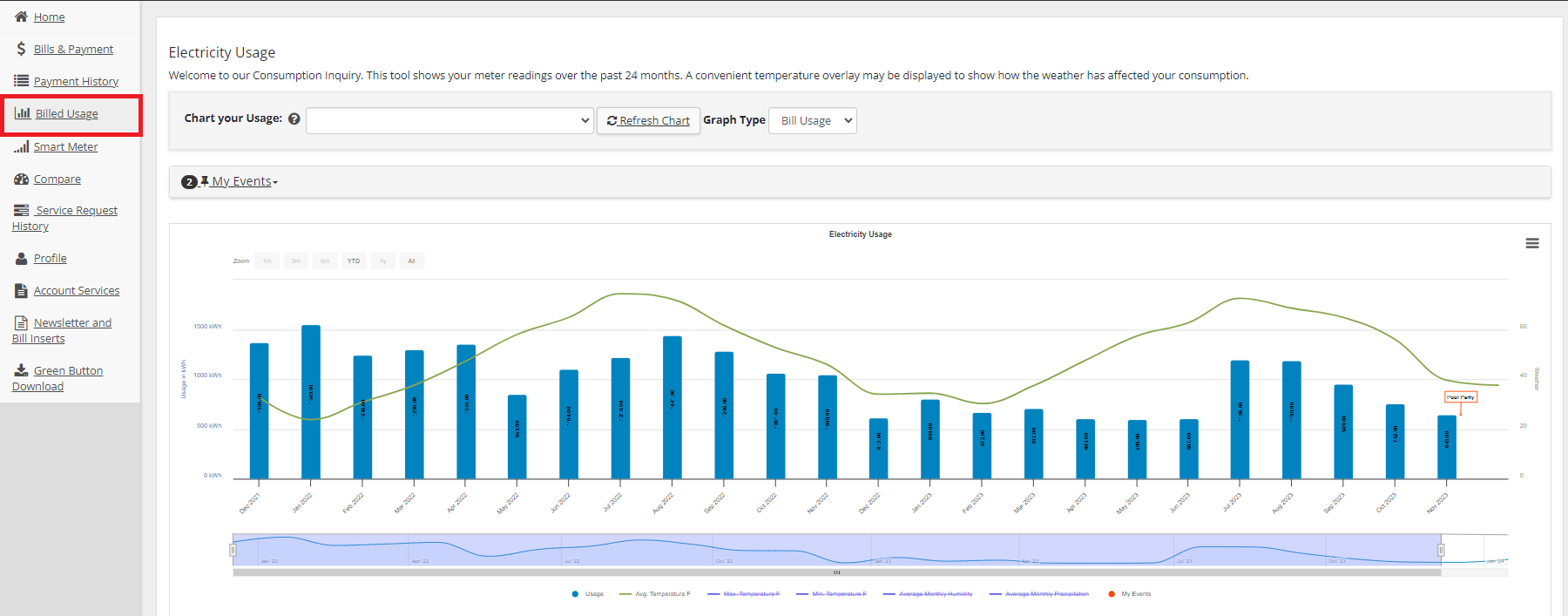
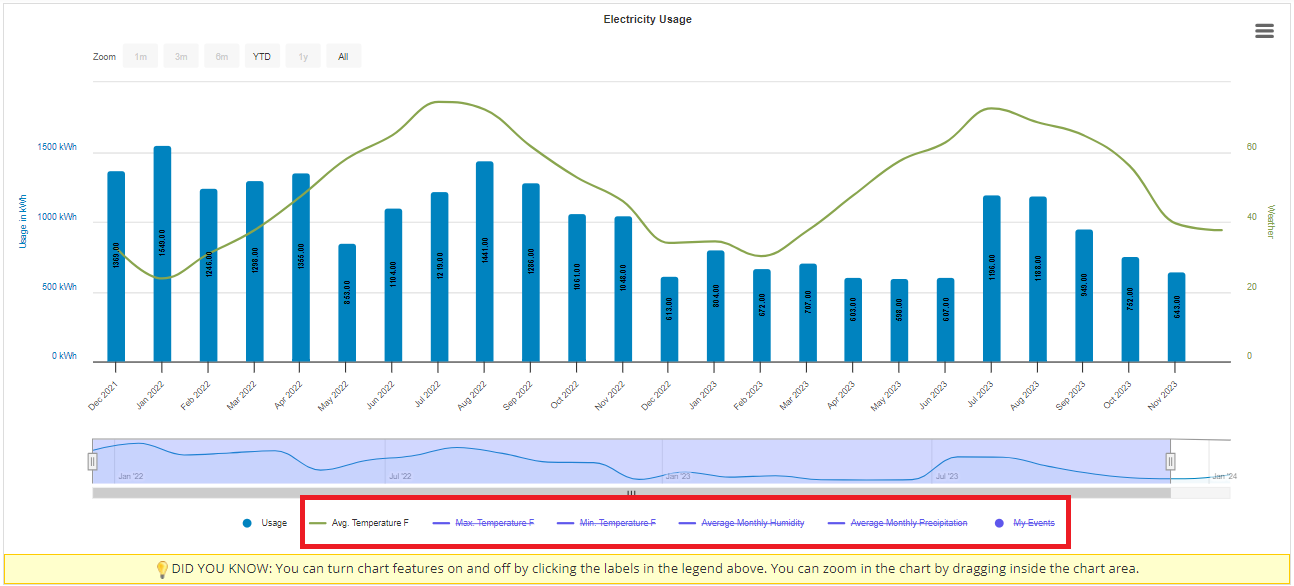
Toggle various weather overlays such as average temperature on and off by clicking on them in the legend below the chart.
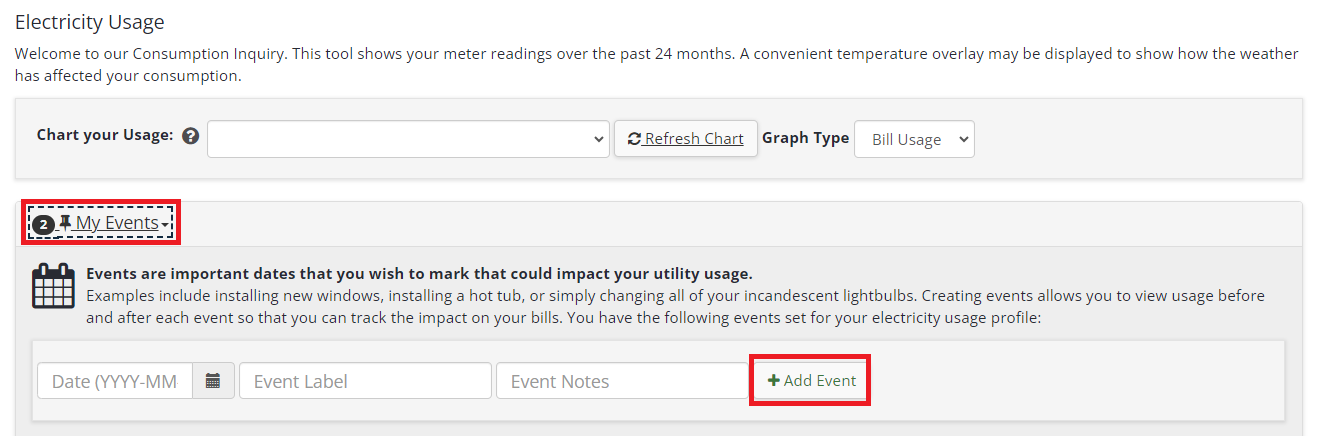
Add events specific to your usage under the "My Events" section. Did you just upgrade to LED lightbulbs or get heat pumps installed? Maybe you had a full house. Tracking these events could help you understand your home's energy usage better.
Usage Downloads:
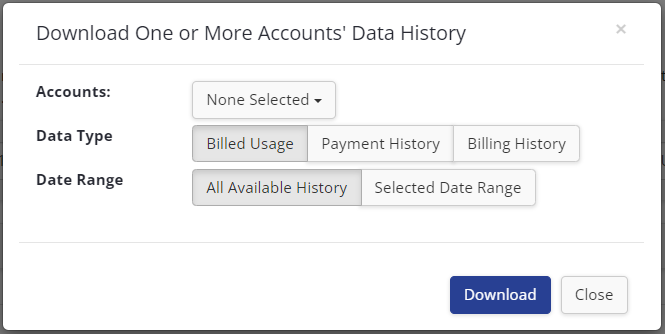
To Download your monthly usage use myaccount.unitil.com (downloads are not available on the MyUnitil App). Scroll to the bottom of the page and select "Download." In the popup, select the account(s), billed usage as the data type, and date range, then select "Download."
For Daily Usage
Electric customers with a smart meter will be able to view and download their daily usage in the Smart Meter tab.
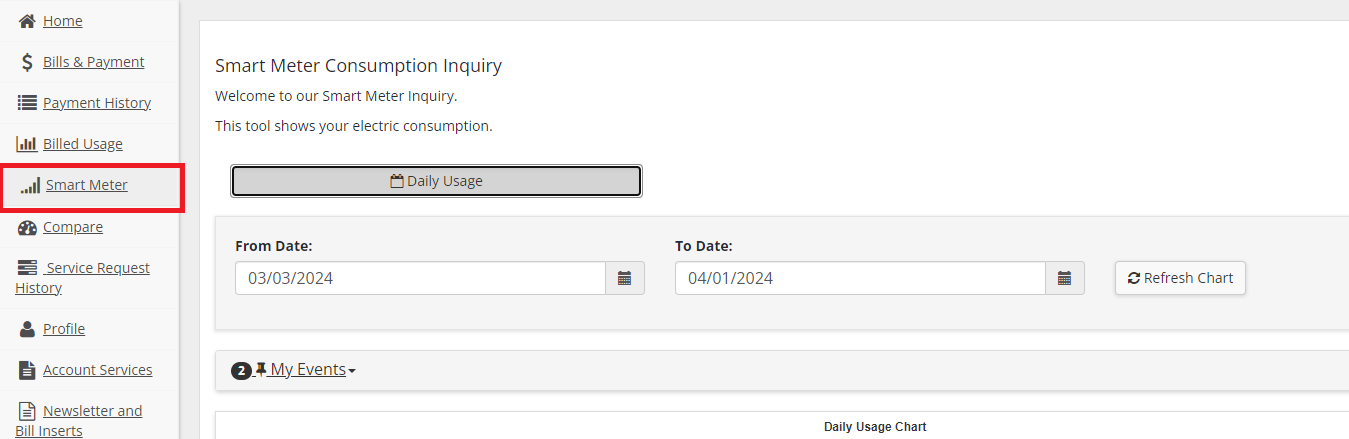
Dates can be adjusted in the fields provided to view up to 90 days of data. Toggle various weather overlays such as average temperature on and off by clicking on them in the legend below the chart. Events that are in the Billed Usage section will be visible here, and new events can be added.
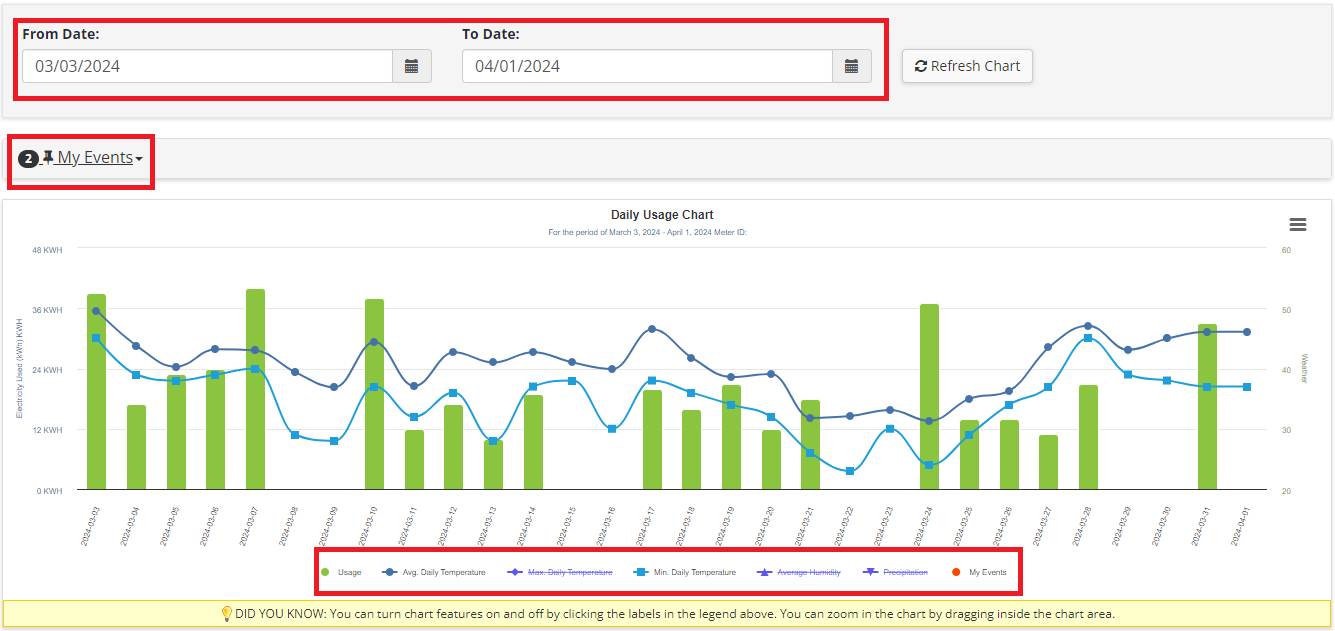
To download 30 days of usage use myaccount.unitil.com. Scroll to the bottom of the page and select "Download Usage History to Spreadsheet."

- Your Account
In the MyUnitil portal, you can download up to 24 months of billed usage, payment history, or billing history for all the accounts linked to your MyUnitil profile into a single data file.
First, log in to the MyUnitil mobile app or your MyUnitil account.
Navigate to “Bills & Payments,” “Payment History,” or "Billed Usage” in the main menu.
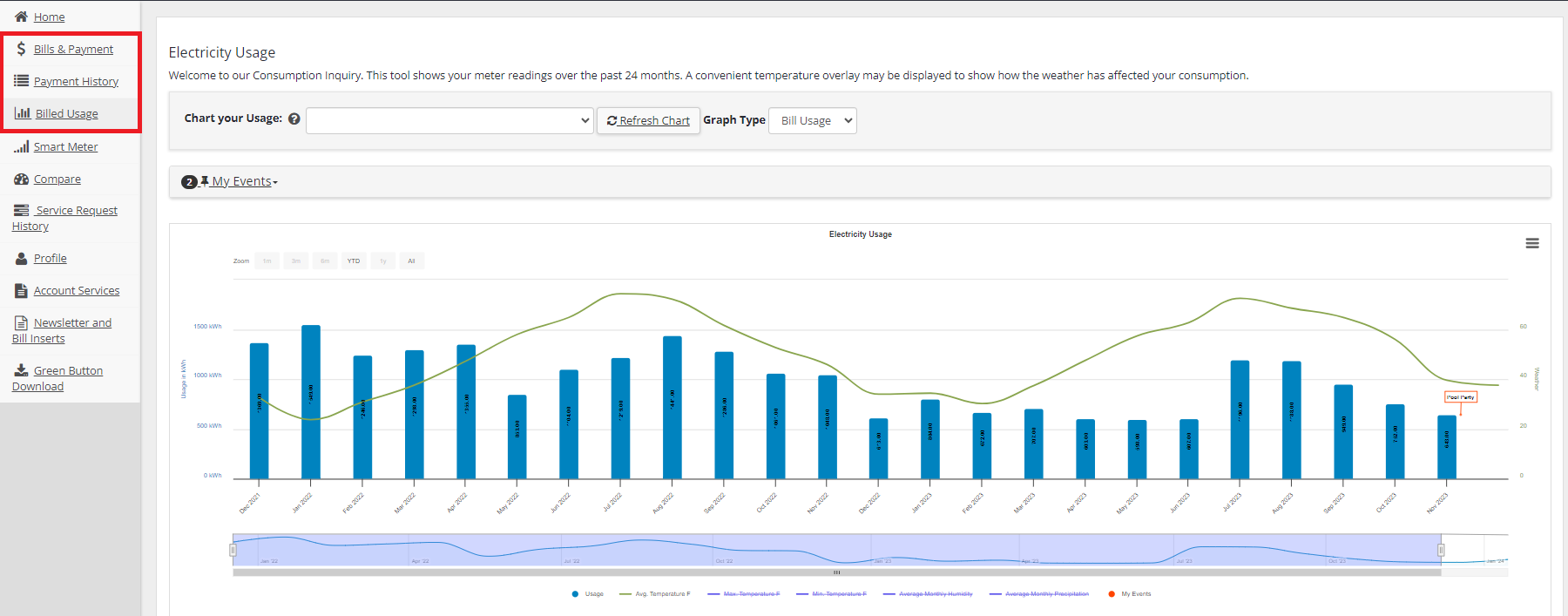
Scroll to the bottom and select “Download.”

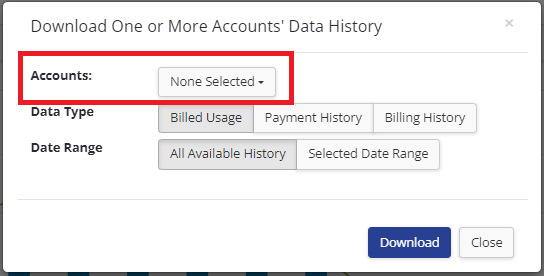
In the pop-up box, select which account(s) you would like to download data for. You can select a single account, multiple accounts, or all the accounts that are linked to your MyUnitil profile. Select the data type and the date range, then select “Download.” A CSV file will download to your device.
- Your Account
- Businesses
There are many benefits to managing your account(s) online. You can view detailed usage charts and graphs, submit service requests, report a power outage, sign up for real-time outage updates, and much more.
You'll also be able to use the MyUnitil mobile app which offers a convenient and secure way to access your account on the go.
To create your account visit:
You will need your account number to sign up.
- Your Account
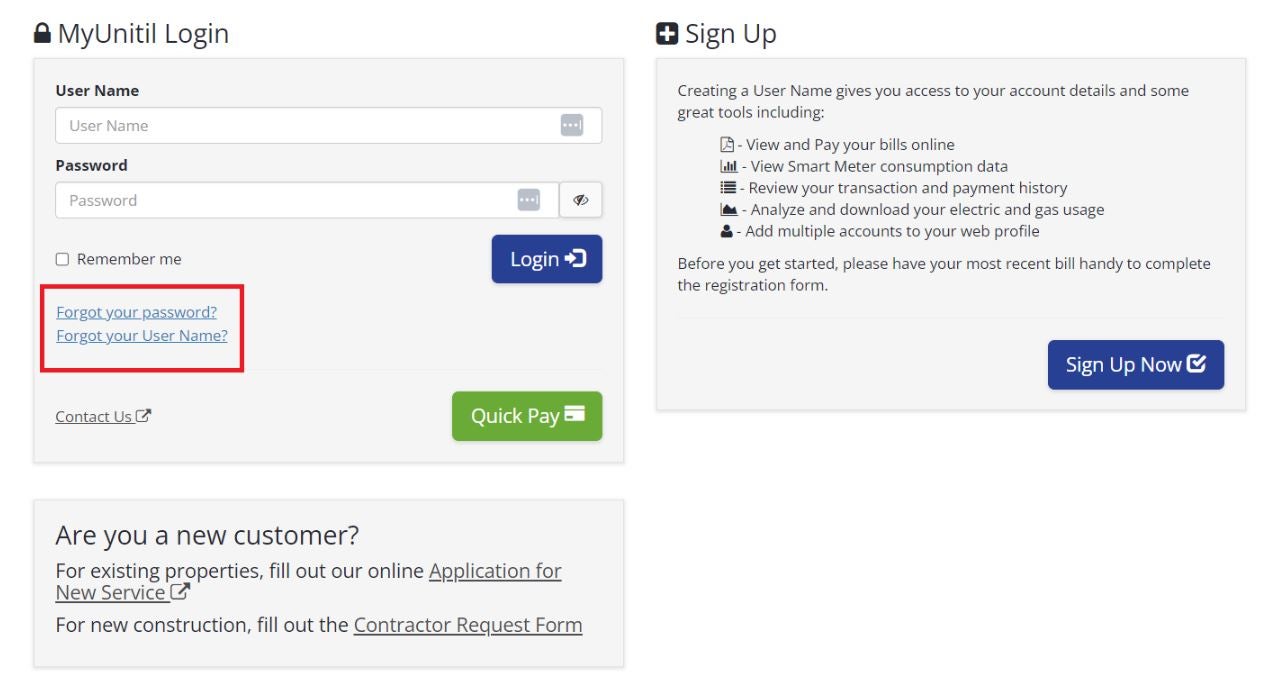
Utilize the Forgot Password and Forgot User Name links in the MyUnitil mobile app or on the MyUnitil landing page.
- Your Account
After logging into the MyUnitil mobile app or your MyUnitil portal, click on the "Profile" tab. Then, select "My Profile" located at the top of the page.
Scroll down to the Change Password section. Enter then confirm your new password.
You will be required to enter your old password in order to proceed with the change.
- Your Account
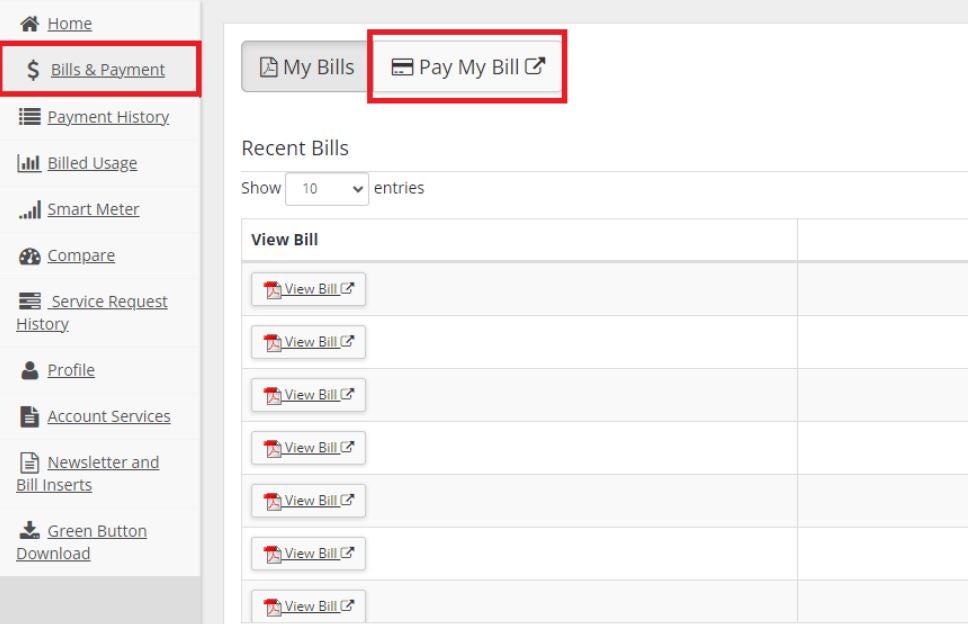
From the "Bills & Payment" tab found in the main menu, click the "Pay My Bill" button. This will bring you to a new tab where you can select your payment account, the pay date, and the amount.
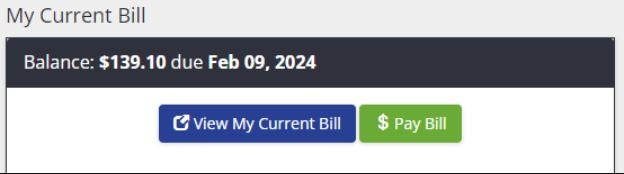
There is also a "Pay Bill" button on the main dashboard in the "My Current Bill" section.
- Your Account
Visit our Request A Payment Plan page. Select between 3 or 6 months in length, and your past due amount will be divided by the number of months selected and added to your current charges each month. Customers enrolled in a financial hardship program should call us at 1-888-301-7700 to discuss an extended payment plan.
- Your Account
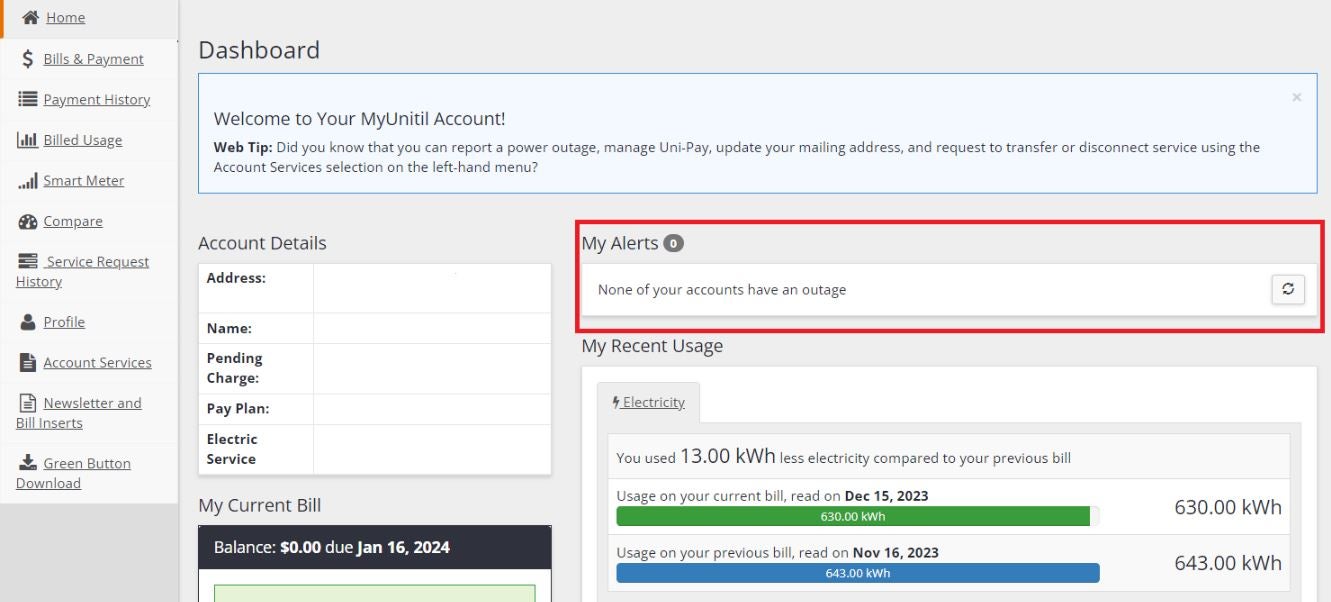
If your account is experiencing an outage, there will be an alert in the "My Alerts" section of your MyUnitil portal dashboard.
- Your Account
- Outages & Emergencies
After logging into the MyUnitil mobile app or your MyUnitil account, click on the "Profile" tab located in the main menu. Then, select "My Profile" at the top and scroll down to find the "Edit Additional Profile" button.

From that pop-up, add email addresses and phone numbers.
Click the "Update Changes" button, then the "x" button at the top right of the pop-up to exit the pop-up.
- Your Account
After logging into your MyUnitil portal, find the "Change Account" button in the top menu bar. This will expand to show all the accounts linked to your profile. Select the account you wish to view.
You can toggle between accounts using the MyUnitil mobile app by clicking the blue circle in the bottom right corner.
- Your Account
